


How to Change your GP Password

Jun 12, 2020
 412
412
Step 1: Open and Login in to GP
Step 2: Click on the Microsoft Dynamics GP button highlighted below

Step 3: Click on User preferences

Step 4: Click on Password

Step 5: Type in your current password then press tab or click on the new password field
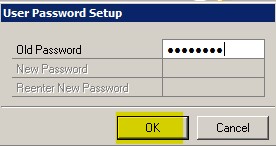
Step 6: Type in the new password and press ok

Step 7: Press the OK button as seen highlighted below

Your password should now be changed and you should see a message like the screenshot below


